
We can't find the internet
Attempting to reconnect
Something went wrong!
Hang in there while we get back on track

ur all n00bs…
theres 2 types of borders i use Border Type 1 : This is one of the most popular borders.
You should have a signature that something looks like this (could look competely different). http://img.photobucket.com/albums/v476/samma383/Border1.jpg

Step 1 : Make a new layer above all other layers and then select all, and do a 1 pixel black inside stroke. Stroke can be found by Edit > Stroke
Step 2 : Make a new layer above the 1 pixel black stroked layer and select all, do a 3 pixel black inside stroke, then a 2 pixel white inside stroke.
Step 3 : Turn the layer just made (in step 2) so that the settings are on overlay.
Your result should look like this http://img.photobucket.com/albums/v476/samma383/Border1-1.jpg
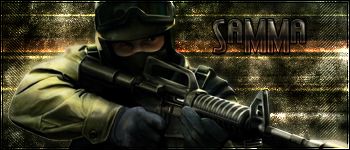
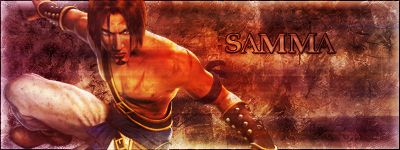
Border Type 2 : Note this must have around 5 layers of brushing at least.
You should have a signature that looks something like this (could look competely different). http://img.photobucket.com/albums/v476/samma383/Border2.jpg

Step 1 : Make a new layer above all other layers then select all, and do a 1 black inside pixel stroke. Stroke can be found by Edit > Stroke
Step 2 :Then make a new layer below some of your brushes and select all, then go to Select > Modify > Border and do a 20 pixel border, then fill it with white.
Your result should be this http://img.photobucket.com/albums/v476/samma383/Border2-1.jpg
To hell with layers, the easiest is to select the image and use Stroke. Bang, done. Geez, the answers above make this look like a contest to see who can waste the most time…
Now if the question was “How do you make borders in Photoshop using as many steps as possible”, then you’ve done a great job.
To hell with layers, the easiest is to select the image and use Stroke. Bang, done. Geez, the answers above make this look like a contest to see who can waste the most time…
As lonelywolfoftyme has just demonstrated, it can be done - but as I said, not in a straightforward manner. Playing around with layers is hardly the easiest way of creating a border.
Borders are not Photoshop’s forte. It can be done, but not in a fairly straight forward manner. It depends on what type of border you want, but try the above suggestions.
To hell with layers, the easiest is to select the image and use Stroke. Bang, done.
Ya, I agree with plainwhitets. To add a border on microsoft word, just click on insert, then borders, and select one you like!!!
It’s easier to save the image and make a background on Microsoft Word, then move it back!
-
How to make someone look slimmer on photoshop? - 2 Answers
How to make someone look slimmer on photoshop??
-
How do I make a flashing Bebo skin without Photoshop? - 2 Answers
Are there any websites where you can create flashing pictures?
-
what is the "full tab" on photoshop? - 1 Answers
what is the "full tab" on photoshop? or how do I find it?
-
When you make a scheduled scan? - 1 Answers
if you make a scheduled scan, will it scan even if your laptop is not on?
-
How can I make Taylor Momsen hair a darker shade of orange red in photoshop? - 5 Answers
I try to use color replacement but no luck. Her hair is too light but i want to know how can i make her hair darker without m...
-
How do you make your picture vintage like with adobe photoshop 0.7? - 3 Answers
I've been trying, and trying and trying to figure it out.. But I just cant get it. I love how people make these cool vintage...
-
Changing someones hair colour on photoshop? - 1 Answers
On Photoshop Elements 7.0 How do you change the colour of someones hair making it look like thats their real hair colour?
-
How to make Emoticons for MSN? - 1 Answers
Does anyone know how to make emoticons( smiley's) for msn?
-
How to have colored brushes in Photoshop? - 4 Answers
Can you make the brushes come out coloured? and if you can how?
-
How can I work on scanned drawings on Photoshop or Illustrator? - 1 Answers
I have pencil drawings on paper. I scanned them, but they are unclear. I want to make them darker and arrange them with text...

Spring Former - Spring Making...
Manufacturing Machinery, Industrial Equipment, Automation Technology
Think Make Push
Video production, Content creation, Digital marketing
Make In India Trade
Manufacturing, Suppliers, Exporters
Adobe Photoshop CC Complete T...
Graphic Design, Photo Editing, Digital Art
Make My Website
Web Design, SEO, Web Development